Posts

Showing posts with the label sharepoint

PowerApps - Building a Expanding Gallery with a Expanding Text Box

Image
I recently built a questionnaire PowerApp for a customer.  They had a bunch of questions where the expected answers could be anything from 50-500 words. The problem was when you put too many words into a text box, it gets scroll bars. eww. I'm not against scrollbars for a whole screen, but for text boxes, yeah no. So here's what we did! Added a 'Blank Flexible Height' Gallery to the PowerApp Connected it to my Collection of questions Added a label to display the question Added a text box to collect the answers Set the following text box properties: Mode: Multiline Height:  40 * RoundUp((Len(TextInput1.Text)+0.01) / 90,0) What this does 40 - how tall the text box is each time you meet the character limit for one line 90 - How many characters it takes to move the 40px multiplier up  roundup - ensures the returned number is only ever 1 rounded number.  This means the text box grows in chunks, instead of growing with each individual character type...
Microsoft Flow - Apply To Each Limitation (5000 items)

Image
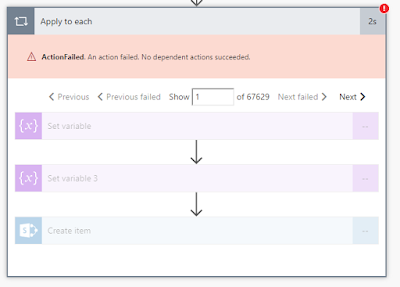
What Had a situation where I was pulling back 70,000 items in an array from a REST API call.  I wanted to create a SharePoint item for each of the items in an array, however the 'Apply To Each' action kept giving me the following error: ActionFailed . An action failed. No dependent actions succeeded. Why This was due to a Microsoft Flow limitation. When you are using the Free Version of MS Flow you are limited to 5,000 items in a loop .  Explained here:  https://docs.microsoft.com/en-us/flow/limits-and-config Workaround I tried my best to come up with a workaround, tried splitting up the array into batches of 5,000.  All to no avail.  in the end, gave up, and saved the array of items to a CSV and saved the CSV in a SharePoint Library instead. body('Parse_JSON')?['applist']?['apps'] The only other alternative I could come up with is to grab the 'first 4999 items' from the array, which does work with an expression like this: ...

Power Query / BI - Data Refresh Error: The column 'Activities' of the table wasn't found

Image
What  Had an issue in the last few days (approx 30/08/2018) where a Excel Report & a Power BI Report was failing to refresh.  The reports were pulling data from a SharePoint Online List. Here's the error I was getting Error: The column 'Activities' of the table wasn't found Why When I built these reports, I used Power Query to import the SharePoint List Data & then to make the data easier to look at, I removed all the System Columns that I didn't need to see.  One of these System Columns was called 'Activities'. Anyway, I'm not sure why, but for some reason when I now get data from SharePoint Lists, the 'Activities' column no longer exists, so the refresh was breaking because it couldn't remove a column I wasn't even using! How to fix I just opened up the advanced editor, found the line where I was removing columns, and deleted the reference to "Activities". Done! let     Source = SharePoint.Tables(...

SharePoint Online - Conditional Formatting a Column Between Two Dates using JSON

Image
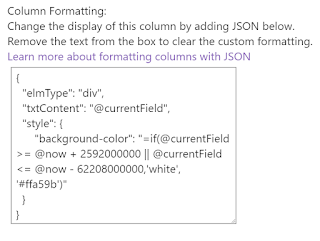
** UPDATE 16/10/2018: In Q4 2018, microsoft are releasing the capability to do this column formatting using the GUI (no code!):   https://techcommunity.microsoft.com/t5/Microsoft-SharePoint-Blog/Reinventing-SharePoint-business-process-at-Microsoft-Ignite-2018/ba-p/260444 ** UPDATE 30/08/2018: I initially wrote this blog at the start of august with the old method (see end of post), however thanks to Dave Paylor ( @payl0rd ) I found a new, cleaner method to creating conditional formatting which brought my lines of JSON down from 50 to 7. What Microsoft have plenty of examples on how to implement conditional formatting on a SharePoint list.  However my specific needs were: If Date >= [Today] + 30 days Then Background WHITE If Date <= [Today] -2 years Then Background WHITE  (This covers any empty fields) Else Background ORANGE  Why I was building a list to monitor licence expiry, applying conditional formatting to these date rules meant that I c...

Nintex Workflow for O365 - Permission Issue With Custom Task Form

Image
What Product: Nintex Workflow & Forms for O365 Scenario: Create a custom Task Form on an 'Assign a Task' action via the ' Edit Task Form ' option Issue: Staff member does not have sufficient permission to approve task, and is instead provided with the following error message "Item does not exist. It may have been deleted by another user." Why In my case, I checked permissions on the list hosting the workflow AND the Workflow Tasks list to ensure the user had at least Contribute access on both (as per Nintex instructions here ). However the error message continued to appear.  In the end it was because of two things: On the list hosting the workflow, in ' Advanced Settings ' I had set Read Access to ' Read items that were created by the user '.  This was so staff cannot see requests submitted by their colleagues. The moment you edit the task form in Nintex Workflow, the Task Form requests data from the list item r...

How To Embed Slack On A SharePoint Page

This isn't going to be my cleanest blog post or code... Here's where you go to get the URL for the 'Get Messages' section of the code: https://api.slack.com/methods/channels.history/test Here's where you go to get the URL for the 'Get User' section of the code: https://api.slack.com/methods/users.info/test CompanyName is the name you signed up for in your Slack URL The rest you should be able to paste into a Script Editor web part -------------------------------------------------- <link rel="stylesheet" type="text/css" href="https://a.slack-edge.com/edd25/style/rollup-slack_kit_legacy_adapters.css"> <link rel="stylesheet" type="text/css" href="https://a.slack-edge.com/a225c/style/rollup-client_base.css"> <link rel="stylesheet" type="text/css" href="https://a.slack-edge.com/4944c/style/rollup-client_primary.css"> <link rel="styl...

PowerApps - Default SharePoint People Picker Field To Be Logged In User

Image
What When you're building a PowerApp connected to a SharePoint List Form and you would like to capture the details of the person who is filling out the form. Why I understand that this is already captured via the 'Created By' SharePoint System field, but sometimes customers like to capture requestor name, phone, etc on the form itself rather than having to go to SharePoint to view it all. Assumptions: You've already created a PowerApp and added a 'Form' Control that uses a SharePoint List as a Data Source. Your SharePoint List contains a People Picker Field How To pull back details about users, add another Data Source: View  Tab > Data Sources > Add Data Source > Office 365 Users Click on the Card in the form that contains your People Picker Field Go To Advanced and click 'Unlock to change properties' so that you can select the field itself Click on the People Picker Field itself, then select the 'Default'...

SharePoint Online - Share or Copy Link Button Defaulting to 'GuestAccess' Link

Image
What Ever tried to copy or share a link in SharePoint Online and it defaults to providing you with a Guest Link that is 'accessible to anyone in the organization'? It's a really good option for staff that want to quickly share a document without having to understand SharePoint Permissions. Unfortunately, the Guest Access Link forces the user to open up the document In-Browser using Office Online.  I personally can't abide this until the functionality between Online & Client are 1-to-1. How to Fix SharePoint Online defaults the Sharing settings for copying & sharing links to "Internal - People in the Organization Only' , which basically means 'Guest Link that opens in browser'. To change this you just need to go to: SharePoint Administration Center Sharing Tab Change the 'Default Link Type' setting from 'Internal' to 'Direct - Only people who have permission' Done!  No more links with 'guestaccess....

SharePoint Online - Hide External Users from Global Search Results

Image
Had a problem where external users (people outside our organisation who had been provided with an anonymous link to OneDrive/SharePoint Documents) were showing up in SharePoint's People Search Results. This article explains how to fix:  https://englando.wordpress.com/2015/07/24/hiding-users-from-office-365-sharepoint-global-search-results/ Basically you need to add a Query Rule to SharePoint's 'Local People Results' Search Query to block out results that contain the external users. I personally filtered out all results where a persons Username contained ' #EXT#' , which is what gets appended in Office 365 whenever an external user is given access to a document.

SharePoint Online - Automate Site & Group Creation with Nintex Workflow O365

Image
What Nintex Workflow for O365 has an action to create a site automatically in SharePoint, but it's functionality is quite limited.  You can't create groups and you can't add staff to those groups.  This tutorial shows you how to create a Nintex workflow to automate the whole process using SharePoint Web Services. Even better, we are going to create the ability to automate Site Creation across multiple Site Collections. If you're looking for a tutorial on how to do this in Nintex Workflow 2010/2013, I've written an article here:  SharePoint 2010 - Automate Site & Group Creation with Nintex Workflow 2010 Why As most SharePoint administrators are aware, it's ALWAYS a bad idea to give staff the ability to create SharePoint sites.  They will end up creating them for the wrong purposes, will not maintain them, no retention policies will get assigned to them, etc. However, you don't want to restrict your users creative freedom.  You want to govern it...

SharePoint Online - Retrieve the Permission Mask Values for a Site using Powershell

This article stems from another article explaining how to [[Automate Site & Group Creation with Nintex Workflow O365]] - Coming Soon What Use Powershell to retrieve detailed data about the permission levels on a particular site Why I had previously created a Nintex Workflow to Automate Site & Group creation using nintex workflow on SharePoint 2010 .  I needed to recreate the same workflow in SharePoint Online / Nintex Workflow O365, however the SharePoint 2010 script for retrieving Permission Mask values did not work. How Using Powershell 3.0 or later, and SharePoint Online Powershell Module.  Open up the SharePoint Online Powershell Module and paste the following code (after updating the variables at the top for your site and admin details): # SharePoint Online - Retrieve the Permission Mask Values for a Site using Powershell # Specifies variable $AdminURI = "https://company-admin.sharepoint.com" $RootSiteCollection="https://company.sharepoint.co...

SharePoint Online - Branding with CSS

Image
----------------------------------------------------------------------------------------- This post is related to a larger group of posts called  Migrate SharePoint to Office 365 - Planning & Steps ----------------------------------------------------------------------------------------- I've gone with a Publishing Site Collection so that I can use the 'Alternate CSS URL' in Site Settings > Master Page. First off, thanks to the following websites which helped get me started: http://blog.sharepointexperience.com/2015/02/sptechcon-austin-february-2015/#more-2766 http://blog.sharepointexperience.com/2015/01/to-brand-or-not-to-brand/ Here's what the end result will look like (if you have the same fonts): Now for the CSS... /* Design By : Brett Randall */ /*     Design Colours: Greens/Greys/Blues */ /*     Last Modified : 28/02/2017 */ /*     Description: CSS to rebrand SharePoint Online Publishing Site Collection that is...

SharePoint 2010 - Automate Site & Group Creation with Nintex Workflow 2010

Image
What Nintex Workflow has an action to create a site automatically in SharePoint, but it's functionality is quite limited.  You can't create groups and you can't add staff to those groups.  This tutorial shows you how to create a Nintex workflow to automate the whole process using SharePoint Web Services. Why As most SharePoint administrators are aware, it's ALWAYS a bad idea to give staff the ability to create SharePoint sites.  They will end up creating them for the wrong purposes, will not maintain them, no retention policies will get assigned to them, etc. However, you don't want to restrict your users creative freedom.  You want to govern it in a manageable way. In order to keep track of all your SharePoint sites, we need to ensure that when we allow staff to create sites/content, it is being properly tagged with the right information.  As long as you are logging & tagging sites with extra data, you can easily govern and manage those sites far i...

SharePoint 2010 - Retrieve the Permission Mask Values for a Site using Powershell

This article stems from another article explaining how to  Automate Site & Group Creation with Nintex Workflow 2010 What Use Powershell to retrieve detailed data about the permission levels on a particular site Why I was looking for a way to automate Site & Group creation using nintex workflows.  In order to create groups, you need to call a SharePoint Web Service.  That Web Service requires an input value called 'permissionMask (int)'. This powershell script will allow you to find the correct permission Mask related to your particular environment & permission levels. How Jump onto your WFE, open up SharePoint Powershell as admin and paste in the following code (with the site you wish to retrieve data for: ## Get site permissions using SharePoint 2010 web service in powershell $uri=" http://rootsite/subsite /_vti_bin/Permissions.asmx?wsdl"  ## $siteName is a string which contains the site name for which you need to get the permissions [St...

Office 365 - SharePoint Online: Run a Report to List Your SharePoint Service Administrators

Image
What I've begun setting up the governance model for SharePoint Online and was working out the best way to ensure when I give someone SharePoint Administration Access that they automatically have full access to administer every Site Collection. My method is to use the 'SharePoint Service Administrator' Group.  This is the group that you are added to when your O365 User Account is assigned the 'SharePoint Administrator' Role. Why My reasoning is that way when a staff member joins the team you only need to get them added to one spot and they are good to get on with the work. Problem Occasionally you will want to check that the right staff have access.  How do you report on who is a member of that group!?  I searched high and low to no avail.  When that fails, there's only one choice...  Powershell. Here's the script you need to run in order to bring back a list of every user that has been given SharePoint Adminstrator Access: #Connection to Off...

SharePoint Online - Switching Between Classic & New Experience

Did you click the 'return to classic SharePoint' button in SharePoint Online and are unsure how to get the New Experience back? You need to clear all cookies from your browser and load up the site again. There doesn't seem to be any button in the GUI that allows you to switch the new experience back on for your specific profile. Update 27/07/2017 : Microsoft have advised that they are adding a 'return to Modern UI' button so people can quickly switch back and forth

Migrate SharePoint to Office 365 - Planning & Steps

WORK-IN-PROGRESS A repository of resources containing what you need to consider before you migrate your On-Premises SharePoint environment to Office 365 (SharePoint Online). This area contains in-depth detail around the planning stage for your SharePoint Migration and how to gather the data you need to be properly prepared come migration day (in no particular order): [[Measuring On-Premises SharePoint Bandwidth]] [[Gathering Storage Requirements for SharePoint Online]] [[Backup & Recovery Options]] --[[3rd Party Tools]] --[[Preservation Hold]] ----[[Calculating Storage Requirements for Preservation Hold]] [[Migrating Content]] Branding --[[Employee Experience]] [[Information Architecture]] --[[Data Retention & Versioning Policies]] --[[Archiving Data]]

From Intranet to Digital Workplace

On the 28th-29th April 2016, I attended the Digital Workplace Conference in Melbourne.  Here are my notes & thoughts about one of the sessions. Session:  From Intranet to Digital Workplace Speaker: James Robertson - @james_steptwo Session Takeaways: Intranets should achieve the objectives of the business.  Shouldn't be used for any one team to push their agenda or workload onto others. James' 3 simple steps for building a Digital Workplace: 1. Have projects to utilise the technology currently available 2. Develop a strategy for the technology that is on the horizon 3. Have a vision  to justify what paths you choose & that plainly explains what you are trying to achieve  6x2 Methodology - James' every-6-months approach to choosing the most critical & beneficial projects for the business.  As well as how to get executive buy in for your vision. A Week in the Digital Workspace  - A vision of how we will work in the...

Nintex Workflow - How To Set a DateTime field to Current Date AND Time

Image
What:  Surprisingly had some trouble with this simple task, so here's how you can avoid wasting 20 minutes of your life.  If you have a list column that is of type Date AND Time, it can be difficult to set it to the current date and time inside a workflow. Why:  You might like to do this if you were logging changes to items to a separate list for reporting on later. How (quick): Create a string variable called 'CurrentDateTime', set the string variable to equal 'CurrentDate[space]CurrentTime'.  Set your DateTime list column to equal the workflow variable CurrentDateTime. How (detailed): Create a Workflow Variable called ' CurrentDateTime ' of type ' Single line of text ' Create a 'Set Variable' step and set CurrentDateTime to equal value: Current Date[space]Current Time (these two values can be found under common variables tab). Update the field on the list item to equal the Workflow variable you just set.  In my ...

SharePoint - What Should Be Allowed to go in Global Navigation?

I'll make this real easy.   IF EVERY SINGLE USER NEEDS IT , then it can go on global navigation. Otherwise, you're wasting precious navigation space for links nobody wants. Still really need a selection of staff to have one-click access to something?  That's fine, you should look at implementing a personalised list of shortcuts on the homepage that each user can manage themselves.  That way that specialised safety system they access everyday takes up their screen space and no one else's. That brings me to : How To Set Up a Personalised Shortcuts List on a SharePoint Site This is almost a golden rule for me, what're your thoughts?