Posts

Showing posts with the label nintex workflow

Nintex Workflow for O365 - Get Manager Email Address
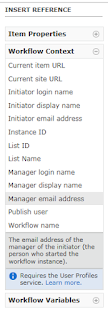
Image
What Nintex Workflow in Office 365 is different from On-Premise, so here's how you can grab a manager's email address. Why If you want to assign a task or email the manager of the person who submitted an item. How Click in the Text Box you would like to add the email address to and using the right-hand navigation menu select Workflow Context > Manager Email Address Reference: https://help.nintex.com/en-US/O365/o365/O365WorkFlow/CreatingWorkflows/Lookups.htm

Nintex Workflow - How To Set a DateTime field to Current Date AND Time

Image
What:  Surprisingly had some trouble with this simple task, so here's how you can avoid wasting 20 minutes of your life.  If you have a list column that is of type Date AND Time, it can be difficult to set it to the current date and time inside a workflow. Why:  You might like to do this if you were logging changes to items to a separate list for reporting on later. How (quick): Create a string variable called 'CurrentDateTime', set the string variable to equal 'CurrentDate[space]CurrentTime'.  Set your DateTime list column to equal the workflow variable CurrentDateTime. How (detailed): Create a Workflow Variable called ' CurrentDateTime ' of type ' Single line of text ' Create a 'Set Variable' step and set CurrentDateTime to equal value: Current Date[space]Current Time (these two values can be found under common variables tab). Update the field on the list item to equal the Workflow variable you just set.  In my ...

Create Appointment in Nintex Workflow - Finding the right certificate

Error: "The root of the certificate chain is not a trusted root authority" this blog has a very good explanation of why you are receiving the issue: http://blogs.perficient.com/microsoft/2011/03/how-to-create-an-outlook-appointment-using-nintex-workflow-2010/ However, the solution for adding the correct Root Certificate was a bit sloppy in my opinion.  As the script below adds ALL the certificates (which in my case was about 100 of them, very messy!): foreach ($cert in (Get-ChildItem cert:LocalMachineRoot)) { if (!$cert.HasPrivateKey) {New-SPTrustedRootAuthority -Name $cert.Thumbprint -Certificate $cert } } When you only need to add one.  The one it's referencing.  It should be referencing your Outlook Web Access URL (Webmail).  You know, the URL you input in the Appointment Configuration Settings. If that's the case, here's how to download the right certificate and keep a nice clean Certificate List in SharePoint: navigate to your Webmail address cl...