Posts

Showing posts with the label Flow

Microsoft Flow - Convert AND Format DateTime from SharePoint for Australia

Image
Using DateTime fields from SharePoint can be a royal PITA.  Here's the simplest way I've found to do a quick conversion from UTC time to AUS time. What Using Flow, when you pull dates from a SharePoint list, even if they look right in SharePoint, they come out wrong in Flow. Why SharePoint Lists store DateTime values in UTC format behind the scenes in the database.  This means even if you have Regional Settings set up in SharePoint to show the correct DateTime in the list, when you pull the data out using other applications, it spits out in UTC. We want to fix that. How The expression I use to quickly convert the timezone AND format it to the correct dd/mm/yyyy format is ConvertTimeZone() . This function expects the following information: ConvertTimeZone(DateTimeString, SourceTimeZone, DestinationTimeZone, Format) Here's an example I've used in an Email Action in Flow: convertTimeZone(triggerBody() ?[ 'DateTimeFromSharePoint' ], 'UTC'...

Microsoft Flow - Create a Teams Message from an RSS Feed

Image
This is a nice simple Flow that I love!  If you work with a lot of different software and want to keep up to date on the latest changes without having to save all those pesky favourites to various RSS feeds/blogs, this is for you. The great thing about this is, when you start posting it to Teams, now everyone can see when there is an update!  It's only 3 steps, here's how: Create a Blank Flow Add the Trigger ' RSS - When a feed item is published ' Add the ' Data Operations - Compose ' action to create a nicely formatted message to send to teams Add the ' Teams - Post a Message ' action, select your team & channel, and put the Compose Output into the Message box I use this flow to keep up to date on all the latest Microsoft PowerApps news, see the screenshot below for my flow setup.

Microsoft Flow - Use the Take() Function to quickly test your loops

Image
The Take() function can be used to filter an array.  For example, if you have an Array with 1000 items in it, you can use the Take() function to only grab the first 5. Why Occasionally when you are building a Flow, you need to run a loop across a large array.  The loop can take hours to run depending on how many items are in the array and how many actions are in the loop.  Use the Take() function to quickly check that your loop will run successfully on a small subset of the array. How In this example we are going to create an array of 10 numbers, and iterate through a subset of the array. The steps are as follows: Create an 'Initialize Variable' Action, and build an array with some values in it - here's some values for you: [1,2,3,4,5,6,7,8,9,10,11,12,13,14,15,16,17,18,19,20,21,22,23,24,25,26,27,28,29] Create an 'Apply to Each' Action and do the following click in the blank text box, navigate to the 'Expression' Tab and type: take() now cl...

Microsoft Flow - Apply To Each Limitation (5000 items)

Image
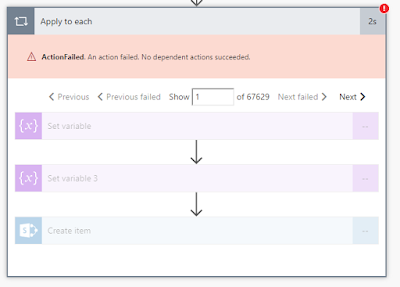
What Had a situation where I was pulling back 70,000 items in an array from a REST API call.  I wanted to create a SharePoint item for each of the items in an array, however the 'Apply To Each' action kept giving me the following error: ActionFailed . An action failed. No dependent actions succeeded. Why This was due to a Microsoft Flow limitation. When you are using the Free Version of MS Flow you are limited to 5,000 items in a loop .  Explained here:  https://docs.microsoft.com/en-us/flow/limits-and-config Workaround I tried my best to come up with a workaround, tried splitting up the array into batches of 5,000.  All to no avail.  in the end, gave up, and saved the array of items to a CSV and saved the CSV in a SharePoint Library instead. body('Parse_JSON')?['applist']?['apps'] The only other alternative I could come up with is to grab the 'first 4999 items' from the array, which does work with an expression like this: ...

Microsoft Flow - Add a 'Scope' To a Flow to Group Actions Together

Image
If you want to be able to group actions together and minimise them in one step, you can use SCOPES.  I'm used to them being called 'Action Sets' in Nintex Workflow and constantly have trouble finding it, so as a quick personal reference here's a picture!