Posts

Showing posts with the label microsoft

Using GenAI to Clean Up Your Power App Naming Conventions

Image
What Providing you, a Power App developer, with the steps to quickly apply theming and naming conventions to all fields within your app, by utilising any GenAI tool. Why After a swift session of adding labels and text boxes and such to your app, and nicely theming one, but then having to apply all the values to other fields, your app probably looks something like this.   At this point, if you are like me, your next steps are: clean up field names re-order tree-view from top to bottom ensure theming matches throughout Depending on the complexity of the app, doing a good job of this could take a whole day. How Add all your fields to your app Theme one perfectly 'View Code' on the Screen and Copy the YAML to Notepad   Open up your preferred GenAI tool - for this exercise I'm using  https://claude.ai/   Enter the following Prompt, before pasting in the code you copied from step 3: I've just built a Power App, but need your help with the following: 1. Naming fields approp...

Power Apps - Check Group Membership For Groups With > 1,000 Members

Image
What There are occasions when it is useful to check inside a Canvas App whether the logged-in user is a member of a specific Security Group. This allows you to implement hide/show functionality for areas of the application that you may only want users/administrators to see. Why The standard method I've used in the past to implement this 'group membership' check is to call the following Connector/Function: Office365Groups.ListGroupMembers() Using this connector, you would first get a list of All the members of a specific security group, then you would do a Filter on that collection to check if the logged in user is one of the Members. However!  That connector only works when group membership is less than 1,000 people, if your group has more than 1,000 members, then there's a chance the app will come a cropper for some users. So below we're going to show you how to do the same check by using MS Graph API calls that all users have access to. How  Using a Graph API cal...

Microsoft Flow - Convert AND Format DateTime from SharePoint for Australia

Image
Using DateTime fields from SharePoint can be a royal PITA.  Here's the simplest way I've found to do a quick conversion from UTC time to AUS time. What Using Flow, when you pull dates from a SharePoint list, even if they look right in SharePoint, they come out wrong in Flow. Why SharePoint Lists store DateTime values in UTC format behind the scenes in the database.  This means even if you have Regional Settings set up in SharePoint to show the correct DateTime in the list, when you pull the data out using other applications, it spits out in UTC. We want to fix that. How The expression I use to quickly convert the timezone AND format it to the correct dd/mm/yyyy format is ConvertTimeZone() . This function expects the following information: ConvertTimeZone(DateTimeString, SourceTimeZone, DestinationTimeZone, Format) Here's an example I've used in an Email Action in Flow: convertTimeZone(triggerBody() ?[ 'DateTimeFromSharePoint' ], 'UTC'...

Office 365 Groups - Quickly find the GUID of a O365 Group

Image
Looking for the GUID for a Office 365 Group and finding it slightly painful with PowerShell? Here's my trick for quickly finding it. I use Microsoft's Graph Explorer:  https://developer.microsoft.com/en-us/graph/graph-explorer Navigate to the Graph Explorer & click the Sign-In button in left-navigation Click the 'Show More Examples' link in the left-navigation Select 'Groups' from the right-hand popout Now you should be able to click ' All Groups in my organization ' on the left hand nav.  (You may need to add the permission ' Directory.Read.All ' to your account. Use Ctrl+F in the response pane to quickly find the group and grab it's ID

Microsoft Flow - Create a Teams Message from an RSS Feed

Image
This is a nice simple Flow that I love!  If you work with a lot of different software and want to keep up to date on the latest changes without having to save all those pesky favourites to various RSS feeds/blogs, this is for you. The great thing about this is, when you start posting it to Teams, now everyone can see when there is an update!  It's only 3 steps, here's how: Create a Blank Flow Add the Trigger ' RSS - When a feed item is published ' Add the ' Data Operations - Compose ' action to create a nicely formatted message to send to teams Add the ' Teams - Post a Message ' action, select your team & channel, and put the Compose Output into the Message box I use this flow to keep up to date on all the latest Microsoft PowerApps news, see the screenshot below for my flow setup.

Microsoft Flow - Add a 'Scope' To a Flow to Group Actions Together

Image
If you want to be able to group actions together and minimise them in one step, you can use SCOPES.  I'm used to them being called 'Action Sets' in Nintex Workflow and constantly have trouble finding it, so as a quick personal reference here's a picture!

HP Laserjet 1022 Printer - Can't Print on Windows 10

If you are having trouble getting your laserjet working on Windows 10, here's how I resolved the problem: Go to Devices & Printers Find your printer & go to Printer Properties > Advanced Tab Set Driver to: HP LaserJet 1022 Class Driver & Apply If HP LaserJet 1022 Class Driver is not available.  download from this site:  http://support.hp.com/us-en/drivers/selfservice/HP-LaserJet-1000-Printer-series/439424/model/439431   Print a test page.

MS Ignite - Office 365: The Next Wave of Innovation (PRD211)

Image
Link to Session:  https://msftignite.com.au/sessions/session-details/1833/office-365-the-next-wave-of-innovation-prd211 About The Session:  Exactly what the session description detailed.  Briefly touched on most of the Office 365 / Office 2016 products and what's new.  Here's some dot points if your interested in downloading this session. Delve:  Now has ability to extend it's reach beyond Office 365 products Delve Analytics:  Can provide individual users with graphs showing thier time usage, who they connect with most at work as well as who they have fallen out of touch with.   Office 2016: Added search features inside word/excel to find & use features that you can't remember where to find.  Potential to save many calls to service desk and time googling for where to find feature. Excel: Ability to auto-forecast profits & loss based on previous years data inside excel.  Has also been loaded with additional ways to visua...

MS Ignite - Certification 101 - Find the Path (EXAM111)

Image
About The Session: Covered the Microsoft certification roadmap.  Discussed Microsoft Academy for kids, educators and trainers.  Spent most of an hour going through how to pass Microsoft exams and what type of questions you can expect.  A discussion around what course material you need to study to pass each exam. All certification are now solutions focused due to the knowledge required to implement systems successfully. Went about 25 minutes overtime. My Musings: The best thing about this session was seeing the official Microsoft certification roadmap, provided below: The rest of the session was not for me.  I thought that 'Find the Path' was going to be all about explaining in detail what path of certification you might like to take and what you can expect.  However it was mainly about how to pass an exam if you're looking to certify and where you can find resources online to help with your study. Funny things to mention: MCSE Exams - You have...

Microsoft Ignite Australia - 17th-20th November

Image
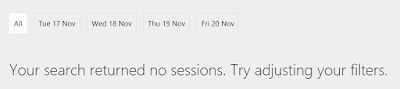
Next week I'm heading to the MS Ignite conference in the Gold Coast and thought I'd sign up to some sessions & get my schedule ready today. Looking through the sessions, there were two things that stood out to me: A lack of SharePoint sessions A very developer-heavy list of sessions The first is surprising because SharePoint 2016 preview just came out and I'm not sure anyone is really doing a deep-dive session on it.  Here's what happened when I tried to filter for SharePoint sessions :S: The second surprise around the mass amounts of developer sessions is because I'm used to Tech Ed events in previous years where they catered for all levels & occupations. Anyone from C-Class (CIO/CEO) down to developer scrubs that want super detail could enjoy the event.  Now I'm not so sure that's the case. The truth is, it's not that surprising.  For a long time now we've watched Microsoft ramp up it's O365/Azure capabilities to match e...

Windows 10 - Trying to Install Legitimately

Got home from 3 months holiday & my Windows 10 Preview had expired on my only computer at home. First off, couldn't even boot the computer because certain core windows files had 'expired'.  After changing the date & time in the BIOS to a year in the past, I was at least able to log in. All good, I knew about the free upgrade from Windows 8.1 which I had a product key for, so I downloaded a copy of Windows 10 pro x64.   Next problem, USB wouldn't appear.  tried to troubleshoot via Disk Management.  Due to changing date & time in BIOS the computer didn't trust me to open anything that required administration rights....  awesome. so now cant find any way to get installation media off the computer.  Luckily my partner had a laptop with windows that I could use.  Jumped on it, downloaded windows 10 AGAIN, straight onto a USB stick. stuck in USB to main computer, tried to install windows 10, formatted main drive, got an error...

SharePoint 2010 - Calendar with multiple resources and Double Booking prevention

So I know this is an OOTB feature, but I'd been looking for exactly this solution for (let's be honest) quite a while. A SharePoint Calendar with which you can book items/resources like projectors, laptops, meeting rooms, etc.  A calendar that also checks whether that resource has already been booked on that specific date and time. Anyway, There is an official Microsoft article at the bottom of this post, but because it took me so long to find, I'm duplicating it: 1.  Activate the 'Group Work Lists' Feature for the Site. 2.  Enable'Resource Reservation' in the Calendar List Settings > Title, Description and Navigation 3.  Ad resources to the 'Resource List' that would have been created when you enabled the Group Work Lists Feature 4.  Use Calendar 5. Profit Official Article: http://office.microsoft.com/en-au/sharepoint-server-help/enable-reservation-of-resources-in-a-calendar-HA101810595.aspx

What Microsoft InfoPath 2010 Can't Do

I feel like there are many sites/blogs/articles etc that list all the wondrous things that InfoPath can do.  They praise how user friendly it is for non-coders, how quick it is to design forms in comparison to Adobe & Visual Studio.  What none of them tell you is that if you want to design a code-less InfoPath form, you are severely restricted in many areas that you wouldn't realise, until of course you need to implement that functionality. "Why would you need to stick to a code-less InfoPath form?" you ask?  Well, in our organisation, the reason is simple.  We plan on creating many automated forms, and we plan on pushing them out to the various departments so that they can administer small changes themselves, only asking for help when they need technical advice. So as a coder who knows what can be achieved with a cheeky bit of C# here and there, I am going to list of issues I've found while trying to create a code-less form: ...