Posts

Showing posts with the label groups

Office 365 Groups - Quickly find the GUID of a O365 Group

Image
Looking for the GUID for a Office 365 Group and finding it slightly painful with PowerShell? Here's my trick for quickly finding it. I use Microsoft's Graph Explorer:  https://developer.microsoft.com/en-us/graph/graph-explorer Navigate to the Graph Explorer & click the Sign-In button in left-navigation Click the 'Show More Examples' link in the left-navigation Select 'Groups' from the right-hand popout Now you should be able to click ' All Groups in my organization ' on the left hand nav.  (You may need to add the permission ' Directory.Read.All ' to your account. Use Ctrl+F in the response pane to quickly find the group and grab it's ID
Deleting an Office 365 Group Deletes your Yammer Group

Image
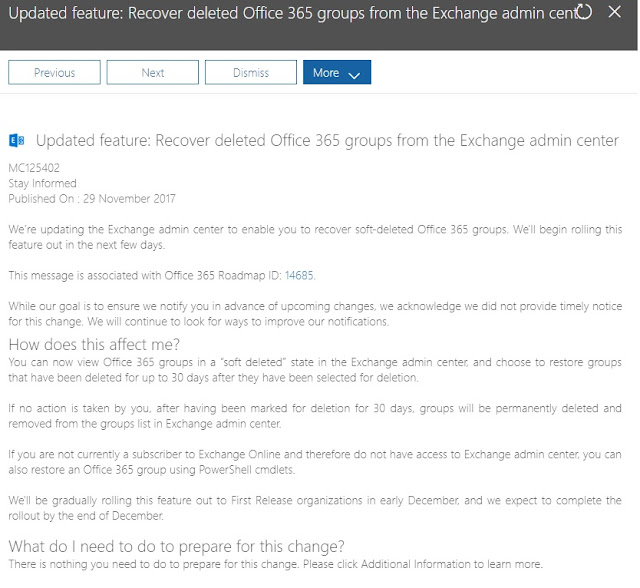
Even if the Yammer Group was created first... So yeah, don't delete O365 Groups unless you want everything gone. If you need to recover: ##Do this off Network with regular powershell opened as Administrator Import-Module AzureADPreview Connect-AzureAD Get-AzureADMSDeletedGroup | Out-GridView Restore-AzureADMSDeletedDirectoryObject –Id xxxxxxxxxxxxxxxxxxxxxxxxxxxxxxx Get-AzureADGroup –ObjectId xxxxxxxxxxxxxxxxxxxxxxxxxxxxxxxx Update - 08/12/2017 Microsoft are rolling this restore functionality into Exchange Online over the next month or two, so you wont need the script above soon:

Export Group Membership From Active Directory Using Power Query

Image
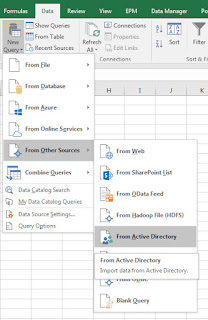
If you need to export a list of staff from an Active Directory Group, follow these steps.  Allows you to gather all the names & usernames of staff in a particular group and save the information into Excel. Step By Step How To: Open up Excel > Power Query Tab Click From Other Sources > From Active Directory: (In Excel 2016 this is found under: Data Tab > New Query > From Other Sources > From Active Directory) screenshots from Excel 2016 on left, Excel 2010 w/ Power Query Add-on right A popup will ask you to enter your domain name.  It should already be populated with the correct information but if not, input your companies domain name & Click OK: In the Navigator that opens up, expand your domain tree and double click group: You should now see a list of all groups in Active Directory in the Power Query Editor: In order to find & filter for a specific Group, Click the Down-Arrow for the 'distinguishedName' column > ...

MS Ignite - Office 365 Groups Overview, Administration and Roadmap (PRD313)

Session Takeaways: By default any user can create a Office 365 group When a group is created, a container is provisioned to allow staff to collaborate using the office apps of their choice.  This saves waiting for multiple IT teams to provision team sites and distribution groups. Provides business users with an instant way to set up a new project and share information. Enables the end-user a choice of platform without being pigeonholed onto a prescribed application. Groups allow staff who get late access, the ability to see all of the past conversation that has happened.  unlike email distribution groups where the conversation is lost in individual mailboxes.  This will save time having to catch up and save having to ask the same questions if you're new to a project. Can Insta-videocall all members of an O365 Group using Skype for business.  Can also start writing up meeting notes straight away within a call Groups integrate with power BI and Dynamics CRM. ...