Posts

Showing posts with the label Office 365

PowerApps - Hide Buttons & Objects based on Office 365 Group Membership

Image
This post shows how you can hide a button inside a PowerApp unless you are a member of a specific O365 Group Why A lot of PowerApps we build these days have two audiences: The person filling out a form The team managing the process The person filling out the form really only needs to do one thing.  Fill out a form, and trust it's been sent to the right people. The team managing the process may have a review & approval process that they don't want regular staff to see.  They may have Power BI reports or other screens that should be kept private. I am going to show you how you can hide these buttons & screens so that they are only accessible if you are a member of an Office 365 Group. How 1. Create Office 365 Group & get ID First we need an Office 365 Group that we are a member of, and we need to retrieve it's ID.  Here's another post on how to get the ID:  How to Quickly find the GUID of a O365 Group 2. We are going to create 2 buttons...

PowerApps - Building a Expanding Gallery with a Expanding Text Box

Image
I recently built a questionnaire PowerApp for a customer.  They had a bunch of questions where the expected answers could be anything from 50-500 words. The problem was when you put too many words into a text box, it gets scroll bars. eww. I'm not against scrollbars for a whole screen, but for text boxes, yeah no. So here's what we did! Added a 'Blank Flexible Height' Gallery to the PowerApp Connected it to my Collection of questions Added a label to display the question Added a text box to collect the answers Set the following text box properties: Mode: Multiline Height:  40 * RoundUp((Len(TextInput1.Text)+0.01) / 90,0) What this does 40 - how tall the text box is each time you meet the character limit for one line 90 - How many characters it takes to move the 40px multiplier up  roundup - ensures the returned number is only ever 1 rounded number.  This means the text box grows in chunks, instead of growing with each individual character type...

Microsoft Flow - Use the Take() Function to quickly test your loops

Image
The Take() function can be used to filter an array.  For example, if you have an Array with 1000 items in it, you can use the Take() function to only grab the first 5. Why Occasionally when you are building a Flow, you need to run a loop across a large array.  The loop can take hours to run depending on how many items are in the array and how many actions are in the loop.  Use the Take() function to quickly check that your loop will run successfully on a small subset of the array. How In this example we are going to create an array of 10 numbers, and iterate through a subset of the array. The steps are as follows: Create an 'Initialize Variable' Action, and build an array with some values in it - here's some values for you: [1,2,3,4,5,6,7,8,9,10,11,12,13,14,15,16,17,18,19,20,21,22,23,24,25,26,27,28,29] Create an 'Apply to Each' Action and do the following click in the blank text box, navigate to the 'Expression' Tab and type: take() now cl...

SharePoint Online - Conditional Formatting a Column Between Two Dates using JSON

Image
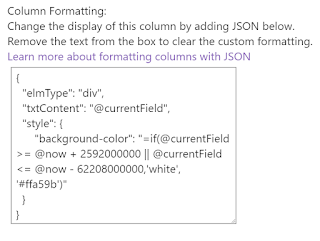
** UPDATE 16/10/2018: In Q4 2018, microsoft are releasing the capability to do this column formatting using the GUI (no code!):   https://techcommunity.microsoft.com/t5/Microsoft-SharePoint-Blog/Reinventing-SharePoint-business-process-at-Microsoft-Ignite-2018/ba-p/260444 ** UPDATE 30/08/2018: I initially wrote this blog at the start of august with the old method (see end of post), however thanks to Dave Paylor ( @payl0rd ) I found a new, cleaner method to creating conditional formatting which brought my lines of JSON down from 50 to 7. What Microsoft have plenty of examples on how to implement conditional formatting on a SharePoint list.  However my specific needs were: If Date >= [Today] + 30 days Then Background WHITE If Date <= [Today] -2 years Then Background WHITE  (This covers any empty fields) Else Background ORANGE  Why I was building a list to monitor licence expiry, applying conditional formatting to these date rules meant that I c...

Nintex Workflow for O365 - Get Manager Email Address

Image
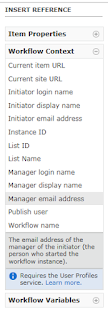
What Nintex Workflow in Office 365 is different from On-Premise, so here's how you can grab a manager's email address. Why If you want to assign a task or email the manager of the person who submitted an item. How Click in the Text Box you would like to add the email address to and using the right-hand navigation menu select Workflow Context > Manager Email Address Reference: https://help.nintex.com/en-US/O365/o365/O365WorkFlow/CreatingWorkflows/Lookups.htm

Office 365 - How to Link Directly To A Users Delve Profile With Email Address

What You've probably seen it before, when you navigate to a persons Delve profile in Office 365, the URL contains a unique UserID. Example: https://aus.delve.office.com/?u=xxxxxxxx-xxxx-xxxx-xxxx-xxxxxxxxxxx$v=work Well there is a way to create a link that will send you to a users Delve profile based on their email address Why You may want to programatically show a list of users and link to their Delve Profiles. How The link below allows you to input an email address at the end, Office 365 will automatically translate this and re-direct you to the Users Profile https:// [TenantName] -my.sharepoint.com/PersonImmersive.aspx?accountname=i%3A0%23%2Ef%7Cmembership%7C [EmailAddress]

Deleting an Office 365 Group Deletes your Yammer Group

Image
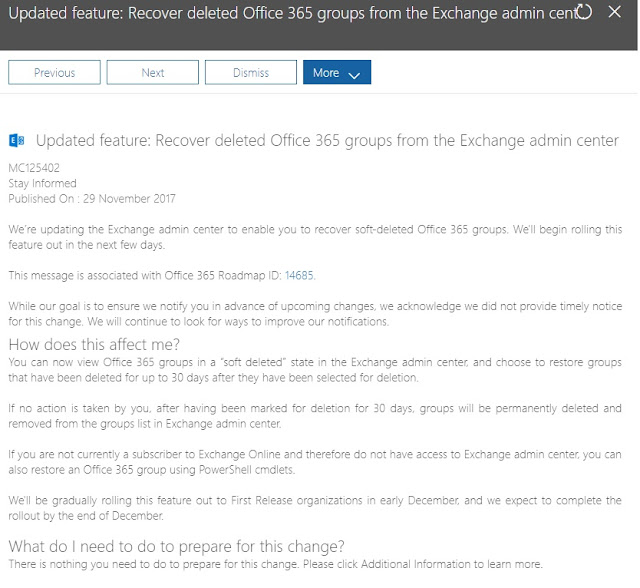
Even if the Yammer Group was created first... So yeah, don't delete O365 Groups unless you want everything gone. If you need to recover: ##Do this off Network with regular powershell opened as Administrator Import-Module AzureADPreview Connect-AzureAD Get-AzureADMSDeletedGroup | Out-GridView Restore-AzureADMSDeletedDirectoryObject –Id xxxxxxxxxxxxxxxxxxxxxxxxxxxxxxx Get-AzureADGroup –ObjectId xxxxxxxxxxxxxxxxxxxxxxxxxxxxxxxx Update - 08/12/2017 Microsoft are rolling this restore functionality into Exchange Online over the next month or two, so you wont need the script above soon:

SharePoint Online - Share or Copy Link Button Defaulting to 'GuestAccess' Link

Image
What Ever tried to copy or share a link in SharePoint Online and it defaults to providing you with a Guest Link that is 'accessible to anyone in the organization'? It's a really good option for staff that want to quickly share a document without having to understand SharePoint Permissions. Unfortunately, the Guest Access Link forces the user to open up the document In-Browser using Office Online.  I personally can't abide this until the functionality between Online & Client are 1-to-1. How to Fix SharePoint Online defaults the Sharing settings for copying & sharing links to "Internal - People in the Organization Only' , which basically means 'Guest Link that opens in browser'. To change this you just need to go to: SharePoint Administration Center Sharing Tab Change the 'Default Link Type' setting from 'Internal' to 'Direct - Only people who have permission' Done!  No more links with 'guestaccess....

SharePoint Online - Hide External Users from Global Search Results

Image
Had a problem where external users (people outside our organisation who had been provided with an anonymous link to OneDrive/SharePoint Documents) were showing up in SharePoint's People Search Results. This article explains how to fix:  https://englando.wordpress.com/2015/07/24/hiding-users-from-office-365-sharepoint-global-search-results/ Basically you need to add a Query Rule to SharePoint's 'Local People Results' Search Query to block out results that contain the external users. I personally filtered out all results where a persons Username contained ' #EXT#' , which is what gets appended in Office 365 whenever an external user is given access to a document.

SharePoint Online - Retrieve the Permission Mask Values for a Site using Powershell

This article stems from another article explaining how to [[Automate Site & Group Creation with Nintex Workflow O365]] - Coming Soon What Use Powershell to retrieve detailed data about the permission levels on a particular site Why I had previously created a Nintex Workflow to Automate Site & Group creation using nintex workflow on SharePoint 2010 .  I needed to recreate the same workflow in SharePoint Online / Nintex Workflow O365, however the SharePoint 2010 script for retrieving Permission Mask values did not work. How Using Powershell 3.0 or later, and SharePoint Online Powershell Module.  Open up the SharePoint Online Powershell Module and paste the following code (after updating the variables at the top for your site and admin details): # SharePoint Online - Retrieve the Permission Mask Values for a Site using Powershell # Specifies variable $AdminURI = "https://company-admin.sharepoint.com" $RootSiteCollection="https://company.sharepoint.co...

Office 365 - SharePoint Online: Run a Report to List Your SharePoint Service Administrators

Image
What I've begun setting up the governance model for SharePoint Online and was working out the best way to ensure when I give someone SharePoint Administration Access that they automatically have full access to administer every Site Collection. My method is to use the 'SharePoint Service Administrator' Group.  This is the group that you are added to when your O365 User Account is assigned the 'SharePoint Administrator' Role. Why My reasoning is that way when a staff member joins the team you only need to get them added to one spot and they are good to get on with the work. Problem Occasionally you will want to check that the right staff have access.  How do you report on who is a member of that group!?  I searched high and low to no avail.  When that fails, there's only one choice...  Powershell. Here's the script you need to run in order to bring back a list of every user that has been given SharePoint Adminstrator Access: #Connection to Off...

Migrate SharePoint to Office 365 - Planning & Steps

WORK-IN-PROGRESS A repository of resources containing what you need to consider before you migrate your On-Premises SharePoint environment to Office 365 (SharePoint Online). This area contains in-depth detail around the planning stage for your SharePoint Migration and how to gather the data you need to be properly prepared come migration day (in no particular order): [[Measuring On-Premises SharePoint Bandwidth]] [[Gathering Storage Requirements for SharePoint Online]] [[Backup & Recovery Options]] --[[3rd Party Tools]] --[[Preservation Hold]] ----[[Calculating Storage Requirements for Preservation Hold]] [[Migrating Content]] Branding --[[Employee Experience]] [[Information Architecture]] --[[Data Retention & Versioning Policies]] --[[Archiving Data]]

Simple Answers - Question #1: What is Office 365 (O365)?

There is a lot of hype about businesses moving to Office 365, but what exactly is it and why is it so popular?  There are a waft of people (even in IT!) that have never heard of Office 365.  Over the next few months I will help demystify Office 365 & all the things great products that come with it. Question #1: What is Office 365 (O365)? O365 is a suite of products provided by Microsoft that can be purchased for a monthly or yearly fee. There are two basic types of subscriptions, Personal or Business. As part of a personal subscription , you are provided with the latest version of Microsoft Office (2016) which can be installed on any device. This includes Word, Excel, PowerPoint, OneNote, Publisher, Outlook, etc. As part of a business subscription, in addition to a copy of Microsoft Office 2016 for all staff, you also get the option of using any of the list of products below which I will go into more detail on later: Yammer Skype for Business Exchange Online ...

The Best OOTB Cross-Site Collection Navigation Solution for SharePoint Online

**UPDATE: This post is now outdated & I suggest using SharePoint Hub Sites to get Cross-Site Collection Navigation I will start by saying:   This solution sucks, but I've done my fair share of research/testing/swearing so you don't have to.  This is the best option you can currently achieve with OOTB (Out-of-the-box) functionality. Problem:  Many large companies moving to SharePoint Online have the same problem.  They have enough data that it needs to be spread out across multiple site collections.  How the data should be split up is a different story .  The fact is, they would like to have consistent Global Navigation across all site collections. Reasons why you would want the same global navigation across all site collections:  Visibility of everything that exists within the SharePoint Online Tenant Consistent navigation simplifies the User Experience, allowing them to be comfortable in any Site Collection without having to remember a ...

Power BI Suites - Which One Do I Use?

Image
I'm presuming you've seen the god-like feature set of Power BI.  I reckon you've probably even opened up browser edition and had a quick play.  Then you've come to the realisation that yeah it is just as awesome as that presenter advised!   But how does it fit together with the rest of the Office 365 suite, and why are there so many different ways to use it!? Here's a quick historical view of the product and a brief introduction into the pros/cons of each option to help you choose a path based on what your business requirements are.  Truth is, you'll probably want all options available to you, however each new solution might require a certain platform. If you take ANYTHING away from this post, remember there are three ways you can use the Power BI suite:  Excel Add-Ins, Power BI Online App, Power BI Desktop App... Excel Power BI Suite (PowerPivot, PowerQuery, PowerMap, PowerView) Before Power BI became an entity of its own, it was initially birthed as ...

MS Ignite - Office 365 Groups Overview, Administration and Roadmap (PRD313)

Session Takeaways: By default any user can create a Office 365 group When a group is created, a container is provisioned to allow staff to collaborate using the office apps of their choice.  This saves waiting for multiple IT teams to provision team sites and distribution groups. Provides business users with an instant way to set up a new project and share information. Enables the end-user a choice of platform without being pigeonholed onto a prescribed application. Groups allow staff who get late access, the ability to see all of the past conversation that has happened.  unlike email distribution groups where the conversation is lost in individual mailboxes.  This will save time having to catch up and save having to ask the same questions if you're new to a project. Can Insta-videocall all members of an O365 Group using Skype for business.  Can also start writing up meeting notes straight away within a call Groups integrate with power BI and Dynamics CRM. ...

MS Ignite - Office 365: The Next Wave of Innovation (PRD211)

Image
Link to Session:  https://msftignite.com.au/sessions/session-details/1833/office-365-the-next-wave-of-innovation-prd211 About The Session:  Exactly what the session description detailed.  Briefly touched on most of the Office 365 / Office 2016 products and what's new.  Here's some dot points if your interested in downloading this session. Delve:  Now has ability to extend it's reach beyond Office 365 products Delve Analytics:  Can provide individual users with graphs showing thier time usage, who they connect with most at work as well as who they have fallen out of touch with.   Office 2016: Added search features inside word/excel to find & use features that you can't remember where to find.  Potential to save many calls to service desk and time googling for where to find feature. Excel: Ability to auto-forecast profits & loss based on previous years data inside excel.  Has also been loaded with additional ways to visua...

Push & Pull data to SQL via SharePoint Online and BCS

Image
PURPOSE Ever wondered what sort of SQL data connections are possible in SharePoint Online? Ever wondered of the limitations when trying this type of setup? If so, read on...  This tutorial will go over all the steps to setup everything from scratch.  Every step is important, you miss one, it won't work. WHAT YOU NEED SharePoint Online Plan 2 (you cannot achieve this with the basic version of SharePoint online as you require access to the Admin panel to setup Secure Store access permissions and BCS permissions. A windows azure account (which you can get a free 30 day trial as long as you're willing to provide your credit card. SharePoint Designer 2013 installed locally (required to create the final connection to the azure DB. Please note, you'll make this a hell of a lot easier if all these accounts are setup using the same office logon.  Otherwise you'll be logging in and out like a madman. IMPLEMENTATION Step 1 - Create SQL Database:   ...