Posts

Export Group Membership From Active Directory Using Power Query
Image
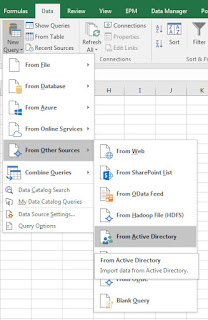
If you need to export a list of staff from an Active Directory Group, follow these steps.  Allows you to gather all the names & usernames of staff in a particular group and save the information into Excel. Step By Step How To: Open up Excel > Power Query Tab Click From Other Sources > From Active Directory: (In Excel 2016 this is found under: Data Tab > New Query > From Other Sources > From Active Directory) screenshots from Excel 2016 on left, Excel 2010 w/ Power Query Add-on right A popup will ask you to enter your domain name.  It should already be populated with the correct information but if not, input your companies domain name & Click OK: In the Navigator that opens up, expand your domain tree and double click group: You should now see a list of all groups in Active Directory in the Power Query Editor: In order to find & filter for a specific Group, Click the Down-Arrow for the 'distinguishedName' column > ...

Simple Answers - Question #1: What is Office 365 (O365)?

There is a lot of hype about businesses moving to Office 365, but what exactly is it and why is it so popular?  There are a waft of people (even in IT!) that have never heard of Office 365.  Over the next few months I will help demystify Office 365 & all the things great products that come with it. Question #1: What is Office 365 (O365)? O365 is a suite of products provided by Microsoft that can be purchased for a monthly or yearly fee. There are two basic types of subscriptions, Personal or Business. As part of a personal subscription , you are provided with the latest version of Microsoft Office (2016) which can be installed on any device. This includes Word, Excel, PowerPoint, OneNote, Publisher, Outlook, etc. As part of a business subscription, in addition to a copy of Microsoft Office 2016 for all staff, you also get the option of using any of the list of products below which I will go into more detail on later: Yammer Skype for Business Exchange Online ...

From Intranet to Digital Workplace

On the 28th-29th April 2016, I attended the Digital Workplace Conference in Melbourne.  Here are my notes & thoughts about one of the sessions. Session:  From Intranet to Digital Workplace Speaker: James Robertson - @james_steptwo Session Takeaways: Intranets should achieve the objectives of the business.  Shouldn't be used for any one team to push their agenda or workload onto others. James' 3 simple steps for building a Digital Workplace: 1. Have projects to utilise the technology currently available 2. Develop a strategy for the technology that is on the horizon 3. Have a vision  to justify what paths you choose & that plainly explains what you are trying to achieve  6x2 Methodology - James' every-6-months approach to choosing the most critical & beneficial projects for the business.  As well as how to get executive buy in for your vision. A Week in the Digital Workspace  - A vision of how we will work in the...

Gather-Decide-Act: Three Business Process Case Studies That Transform Data Collection Into Inspired Action

On the 28th-29th April 2016, I attended the Digital Workplace Conference in Melbourne.  Here are my notes & thoughts about one of the sessions. Session:  Gather-Decide-Act: Three Business Process Case Studies That Transform Data Collection Into Inspired Action Speaker: Mike Fitzmaurice -  @MikeFitz Session Takeaways: Simple solutions using SharePoint lists and Nintex Forms to gather data easily Nintex Forms allow you to fill out forms in offline mode on a mobile device   Offline mode works like your email outbox.  It holds onto the data until there is an internet connection Mike's theory is that if you show a company how to collect data with a simple form, they will see the value of the solution & be inspired to act on building solutions for their other problems Tip: make data collection as simple as possible.  Don't build complicated forms Nintex Workflow also has the functionality to generate contract documents using the data captur...

AvePoint DocAve 6 - How to Fix the Error "The timer service is down"

Image
Logged into DocAve today to move some content from one site to another, only to come across this error as soon as I logged in: "The timer service is down, which may cause the manager service stop working.  Please ensure your timer service is started." My first thought: Don't care, as long as I can still complete my task.  So went to Content Manager, tried to expand my farm in the tree-view, only to get this error! An error occurred while loading the data.  Please view the logs for details. I'm the kind of man that uses Logs as a last resort, so here's how I fixed it: Logged onto the server that is hosting the DocAve 6 Manager, then opened up the 'Manager Restart Service Tool' for DocAve from the Start Menu & restarted all three services: Once they restarted, tried logging back into DocAve, but turns out one of my Server Agents was still down:   View of Agent Monitor which can be found by navigating to Control Panel ...

The Ultimate Reporting Solution Using SharePoint Task Lists

Image
Preamble  ------------------ We've all done it before, built a task list,  exported SharePoint list data to excel , created a pivot table & chart to show status in each column.  Below is a quick example of what you can get by doing something simple like that.  It's great for getting a snapshot of the task list, but terrible for reporting on team performance. export to excel Pivot-table & chart of a task list What  ------------------ Reporting isn't just about showing stats on how your tasks are tracking.  Sure, it gives you an idea of what you have achieved over a set period of time which is great information for upper management.  But it doesn't help you improve your customer experience. What if you could develop an automated report that could track every task individually?   What if you could see how long a particular task sat at a particular status?   What would happen if you found out that tasks spend...

Nintex Workflow - How To Set a DateTime field to Current Date AND Time

Image
What:  Surprisingly had some trouble with this simple task, so here's how you can avoid wasting 20 minutes of your life.  If you have a list column that is of type Date AND Time, it can be difficult to set it to the current date and time inside a workflow. Why:  You might like to do this if you were logging changes to items to a separate list for reporting on later. How (quick): Create a string variable called 'CurrentDateTime', set the string variable to equal 'CurrentDate[space]CurrentTime'.  Set your DateTime list column to equal the workflow variable CurrentDateTime. How (detailed): Create a Workflow Variable called ' CurrentDateTime ' of type ' Single line of text ' Create a 'Set Variable' step and set CurrentDateTime to equal value: Current Date[space]Current Time (these two values can be found under common variables tab). Update the field on the list item to equal the Workflow variable you just set.  In my ...